Analytics Canvas can reduce or eliminate sampling by using query partitioning.
3. Table Booster
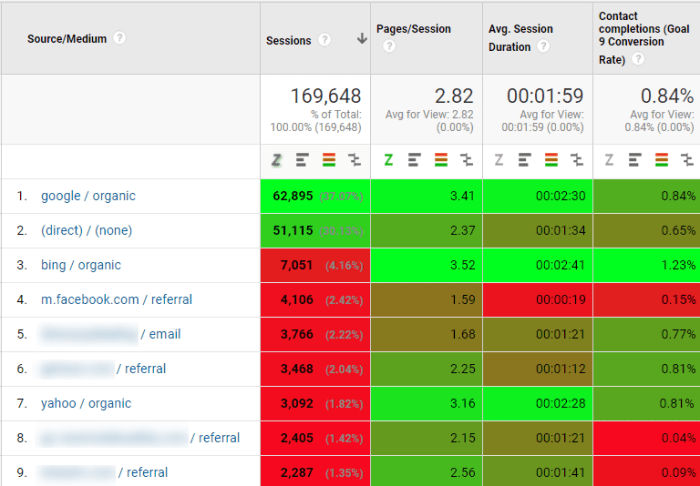
The Table Booster for Google Analytics is a small plugin that can help a GA user to analyse the performance of a dimension (for example a source) on one or multiple metrics.
You can work with different tests and charts:
Z-test.
Bar-Chart.
Heatmap.
Comparison.
Here is an example where we the best traffic source by conversion rate is marked with bright green: bing / organic which has a conv. rate of 1.23% much higher vs. the avg. 0.84%.
4. Check Google algorithm updates impact on traffic
I want to share with you some of the options in the tool that I think they can be useful for a data analysis project (and how to edit them).
1. See Changes over time
(Ex.: current week vs. previous week , current month vs. same month on last year)
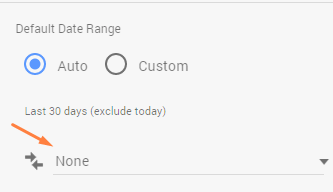
How to edit this option on a table
Note: If you are creating a new table you will see on the edit options on right when scrolling there is an option after Default Date Range showing “None”. Click on it to add the compare period.
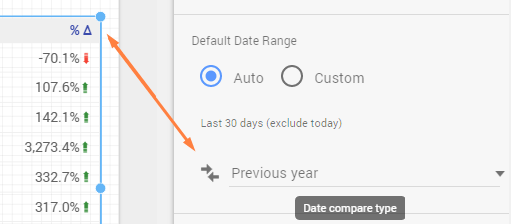
Below is an example with changes current period vs. same period last year and how it looks on a table.
Another example on how it looks on a Scorecard after selecting Previous year.
Note: The change will show with a green or red number on a Scorecard.
(Ex.: the conv. rate improved by: +73.1% here.)
2. Filter controls
Use filter controls if you have time to explore more details on your data.
Here is a 4 min. presentation from Google regarding the filter controls:
After clicking the Filter control button you will see that you can create a square or a rectangle that will be showing all the options selected by default.
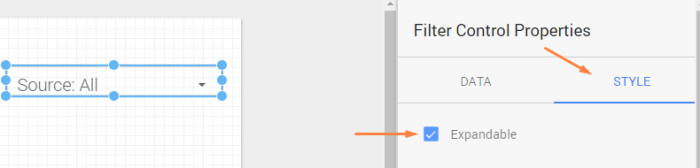
If you want you can change this default view state to a dropdown.
Go on the Filter Control Properties on right and choose Style.
By adding more metrics and dimensions you can get more specific in your data analysis.
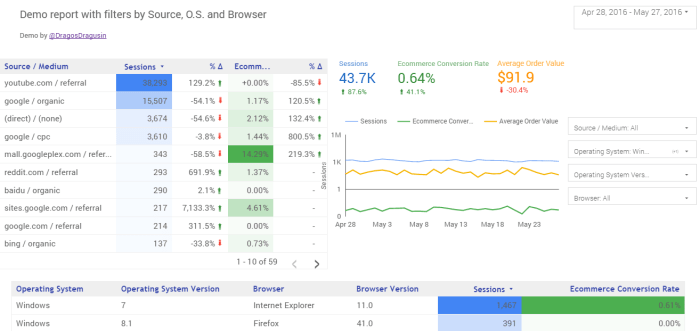
For example you could add in a table the dimensions: O.S. , O.S. version, Browser, Browser Version and the metric ecommerce conv. rate to identify the specific sources where you might have problems.
If you need to increase the space on width to show more data in the first screen you can change this from File – Report and theme settings – Layout – and choose Landscape.
If you want to make sure you are tracking accurate data (or if you want to check if you have issues with the Google Analytics setup) this article is for you.
There are multiple ways where your analytics data can be inaccurate. You can fix some of the bugs, but others are beyond your control.
Actions based on incomplete or invalid data can have a negative impact on a business and the number of missed opportunities can increase.
I have divided the tools suggestions by 2 categories based on their location:
inside GA and external.
Tools for debugging inside Google Analytics
1. Google Analytics Diagnostics (inside the GA product).
Suggestion for: Everyone.
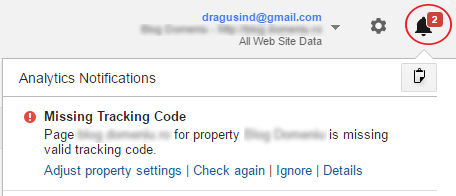
Google Analytics will check the configuration for common problems and sometimes it will report us the issues.
How you can use it for debugging:
Click on the bell icon on the top right corner to see if there are notifications triggered.
Tip: Click on “Details” for each notification to learn more about it and to find possible solutions.
You have to wait for the issues to appear after data is collected.
It will tell us if an issue was fixed or not only after collecting more data.( Crawl frequency varies)
2. Real-time Reports (inside the GA product).
Suggested for: Everyone
Real-time Reports are great for testing.
I use them to check the triggers for the tracking code, goals, events or virtual pageviews.
How you can use it for debugging
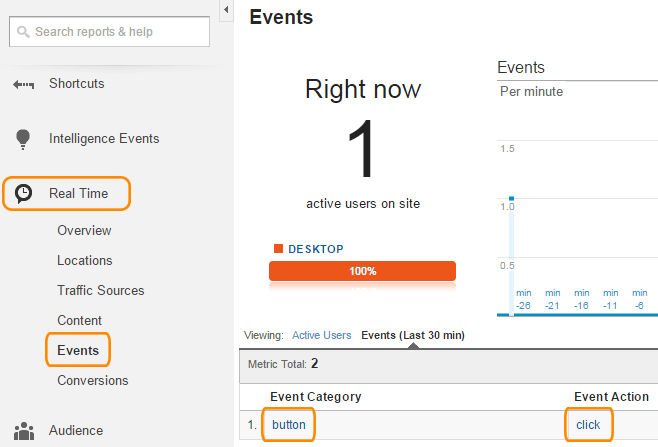
This is an example where a link event is recorded ok.
I selected a page where I have the Google Analytics tracking code installed and also an event on a link. After clicking on the link with the event I went in GA on the “Reports” section > Real Time > Events to see if the event was triggered.
These 2 sections inside Google Analytics are useful but for a full debugging I suggest using other external tools.
This tool helps you check if the tracking tags are installed correctly on your pages (not just GA). You can debug Google Analytics Tracking Code (GATC), Google Tag Manager (GTM), and Adwords Conversion Tracking.
How you can use Tag Assistant for debugging:
I will show you some examples with notifications that may or may not appear.
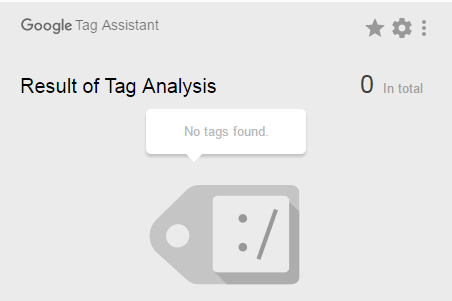
1. “No tags found”.
Solution: Add the Google Analytics tag in the website source code. (Even if it seems obvious, some people forget to do this.)
2. “Code found outside of <head> tag.”
Solution: Move the tracking code inside the <head> tag. (This is the recommended location of the from Google)
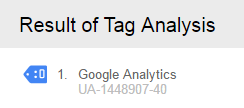
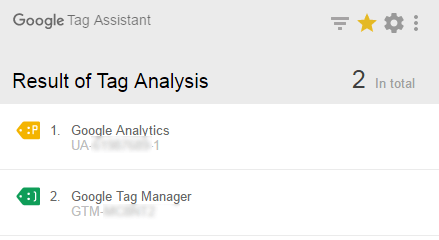
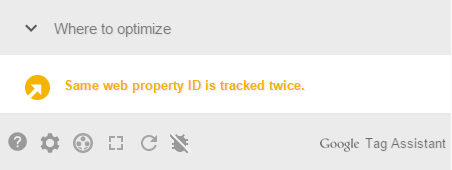
3. “Same Web Property ID is tracked twice.”
Solution: It is recommended that you keep only one tracking code.
This notification usually means you are using 2 instances of the same tracking code on the website.
Scenario example for this case: you could have the tracking code added in Tag Manager but also from another source (like a plugin; Ex.: Yoast).
If you want to see more information about Google Tag Assistant check this video:
There is also a video from Google showing how to use the recording function.
Limits:
It can’t check all the tags that don’t fire (as they are either broken or waiting for an event to occur first)
It can’t scan all the pages from the website automatically.
Tip for checking tags:
Besides checking your website/s, you can also check other websites to see what kind of tags they are using. You can check for example if a website has a remarketing tag.
Besides checking the Google tags you can use another extension like “Ghostery” or “Builtwith” to check other tags.
I suggest using a tool like Google Sheets or Excel to make a health check report for monitoring the implementation and to know exactly what the status is on your data.
Tip: If you want to find out details about making a health check report I suggest reading the book “Successful Analytics” by Brian Clifton.
The book has over 700 pages (which may seem a lot at first sight for some people) but I think this is not a reason to worry. (For reference purposes I placed in the image above a smaller book: “Delivering Happiness: A Path to Profits, Passion, and Purpose” which has 272 pages.)
The content is not overly technical and is quite easy to understand and follow. There are many pages that contain images with tables and graphs from Universal Analytics. I think the screens are useful for new users of the tool and they should help the readers to understand the concepts being discussed.
The author encourages the reader to become an active participant and apply the key concepts from the book by including chapter review questions, exercises and a free downloadable website. (The website is a fictitious travel agency.) Using a website demo when a new user wants to implement something new is a good approach because this way he can better understand the key concepts without the risk of damaging a real website.
Some of the books I have read don’t have the content updated to reflect recent changes in Universal Analytics. This is not the case for the second edition of this book: the content (released in July 2015) is updated for Universal Analytics and includes topics like:
cohort analysis
benchmarking
custom tables
tree maps
The book, however, does not address Google Tag Manager.
(There are other books on Amazon and online resources that discuss Tag Manager for those who are interested in taking this approach.)
While a wide range of topics are discussed, the topics that caught my attention were the events regarding video monitoring, form completionmonitoring and page scroll. These are not in the standard configuration of Universal Analytics and I liked that the author included them in the book.
To summarize, I believe the book is a good starting point for people who are new to this tool (and it should provide a good reference for those who are already familiar with Google Analytics.
If you are interested in the book you can buy it from Amazon here.




















 .
.

 Analytics Course